Step 1: Make sure PeakReps fits your business
Branded apps are for real coaching businesses. You don't need a big following, a set number of clients or a registered company: individual trainers can be eligible too.
Check that:
- You're a genuine personal trainer, coach, gym or coaching business.
- You know what you offer: in-person sessions, live 1:1 coaching, online coaching, programs, or a mix.
- You own, or have a licence to use, your business name, logo, photos, videos, music and programs. Uploading something to PeakReps doesn't mean you have the rights to it.
- Your content follows the rules in our Terms of Use, under "Your Obligations".
- You're on a plan that includes the branded app. Branded apps come with our paid plans: compare plans on our pricing page.
Step 2: Build your content in PeakReps
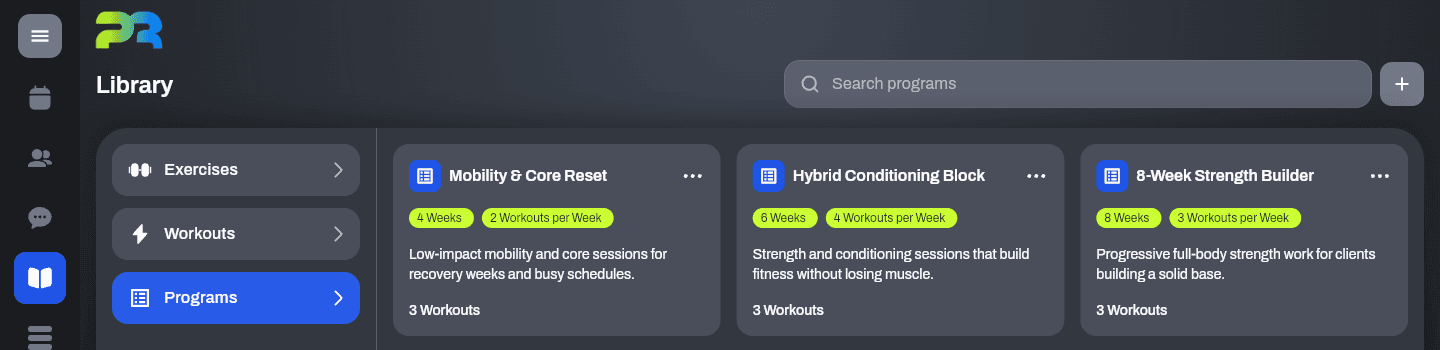
This is the step that makes your app yours. Apple and Google turn down apps that look like empty templates, so your Library needs real content before we submit.
What you'll need
- At least 3 programs and at least 8 workouts of your own, with each program using at least 2 of them.
- Real content your clients will use: no placeholders, and no copies of PeakReps' built-in workouts or programs.
This is PeakReps' bar, not a number Apple or Google publish. We set it to give your app the best chance with the store reviewers.
The Free plan allows 2 programs and 15 workouts, so you'll need a paid plan to reach 3 programs. Branded apps need a paid plan anyway.
Tip: your own exercise videos and photos make the app feel like yours.
Step 3: Get your branding ready
Your icon, logo, colours and name are what clients see first, in the store and on their phone. Getting them ready now saves a round of emails later.
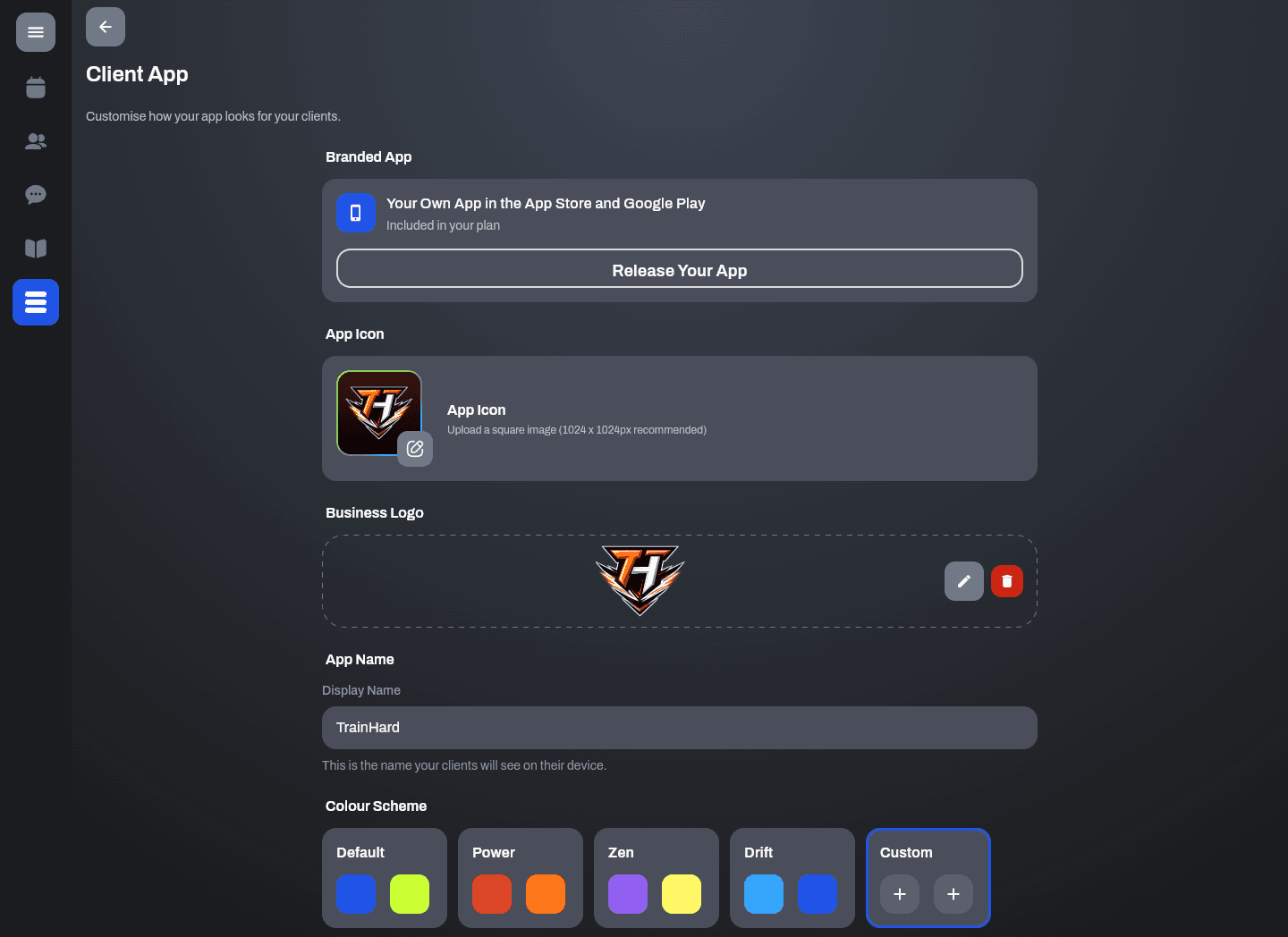
App icon
- A square 1024 × 1024 px PNG.
- No transparency and no rounded corners. The stores round the corners for you.
- Simple, and easy to read at small sizes.
We make the smaller sizes each store needs from this one image.
Business logo
Your logo appears inside the app. Use a PNG with a transparent background, cropped tightly around the logo.
Crop it before you upload it: PeakReps uses your logo exactly as you upload it.
Brand colours
A primary colour and a secondary colour. Together they set the look of your app.
App name
Up to 30 characters. This is your app's name in the App Store and Google Play.
Before you settle on it, check it isn't already used by another app in either store, or registered as someone else's trademark.
Where to set these
In the PeakReps trainer app or web app, go to More → Client App. Upload your icon under App Icon and your logo under Business Logo, enter your name under App Name, and pick your colours under Colour Scheme.
Step 4: Tell us about your business
We use these details to write your store listing and answer the stores' questions about your app. You don't need to fill in a form: just put them in your email when you contact us.
What you'll need
- Your legal business name, or your own name if you trade as yourself. It's the name the stores show as the seller or developer.
- A short description of what you do. We'll draft your store description from it.
- A support email your clients can use.
- The countries you coach in, and who your clients are.
No support page? PeakReps can host one for you.
Tell us if any of these apply:
- medical or rehab advice
- clients under 18
- combat sports
- sensitive health topics
- content you didn't create yourself, such as music or licensed video
- anything else unusual
These affect your app's age rating and what we declare to the stores, so it's better to mention them now.
Check in with us before you pay any store fees
Once steps 1 to 4 are done, email us at support@peakreps.com for a readiness check. We'll check your content and branding are ready before you pay Apple's or Google's fee.
You don't need your Apple or Google accounts for this. You can start the free, slower parts of steps 5 and 6, like getting a D-U-N-S number, while we look.
Step 5: Create your Apple Developer account
Your app is published under your own Apple Developer account, so the App Store shows your name or your business, not ours. This step can take the longest, so start it early.
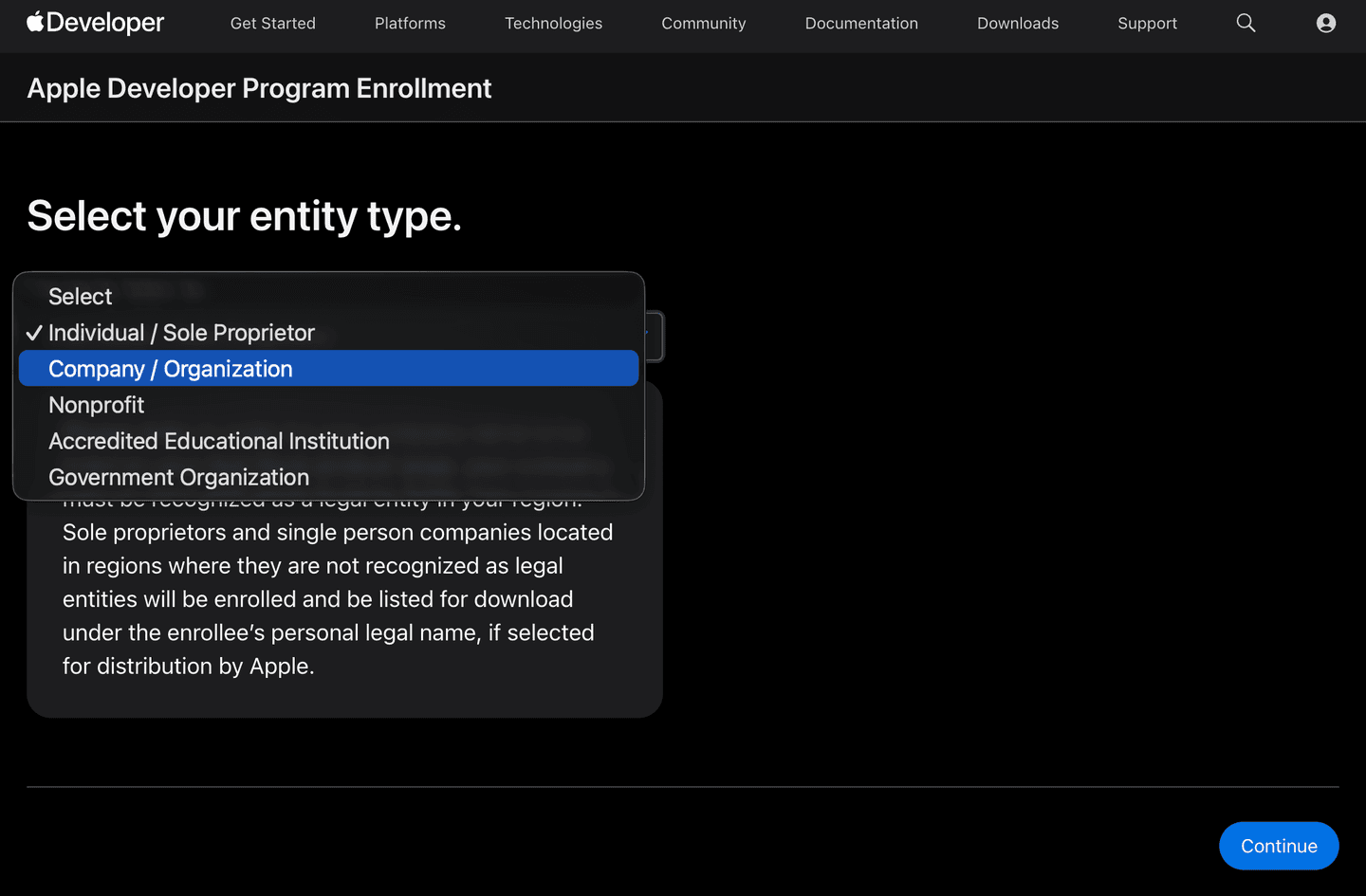
Organisation or individual? We recommend enrolling as an organisation, so the App Store shows your business as the seller. Individuals can enrol too, and the App Store then shows your personal name.
A D-U-N-S number, for organisations. Apple asks organisations for a D-U-N-S number. It's free, but it can take a while to come through, so apply early. Apple's D-U-N-S help page explains how to look yours up or get one.
Identity checks. Apple checks who you are, and for an organisation, that it's a legal entity and that you can sign for it. You do this directly with Apple.
The membership fee. Apple charges an annual membership fee, which you pay directly to Apple. You'll find the current price on Apple's Developer Program page. The membership renews every year, and your app needs an active membership to stay in the App Store.
Agreements. As the Account Holder, you accept Apple's agreements, and any updated ones when Apple asks. Apple's Paid Apps Agreement is only needed for apps that sell in-app, which PeakReps branded apps don't do.
Tax and banking. Apple only asks for tax and banking details under the Paid Apps Agreement, and you'd enter them directly with Apple. PeakReps never asks for them.
What you'll need
- Your legal name, or your organisation's legal name and D-U-N-S number.
- The authority to sign for your organisation, if you enrol as one.
- A way to pay Apple's annual fee.
Step 6: Create your Google Play developer account
Your Android app is published under your own Google Play developer account. It works much like Apple's, with one big difference for personal accounts.
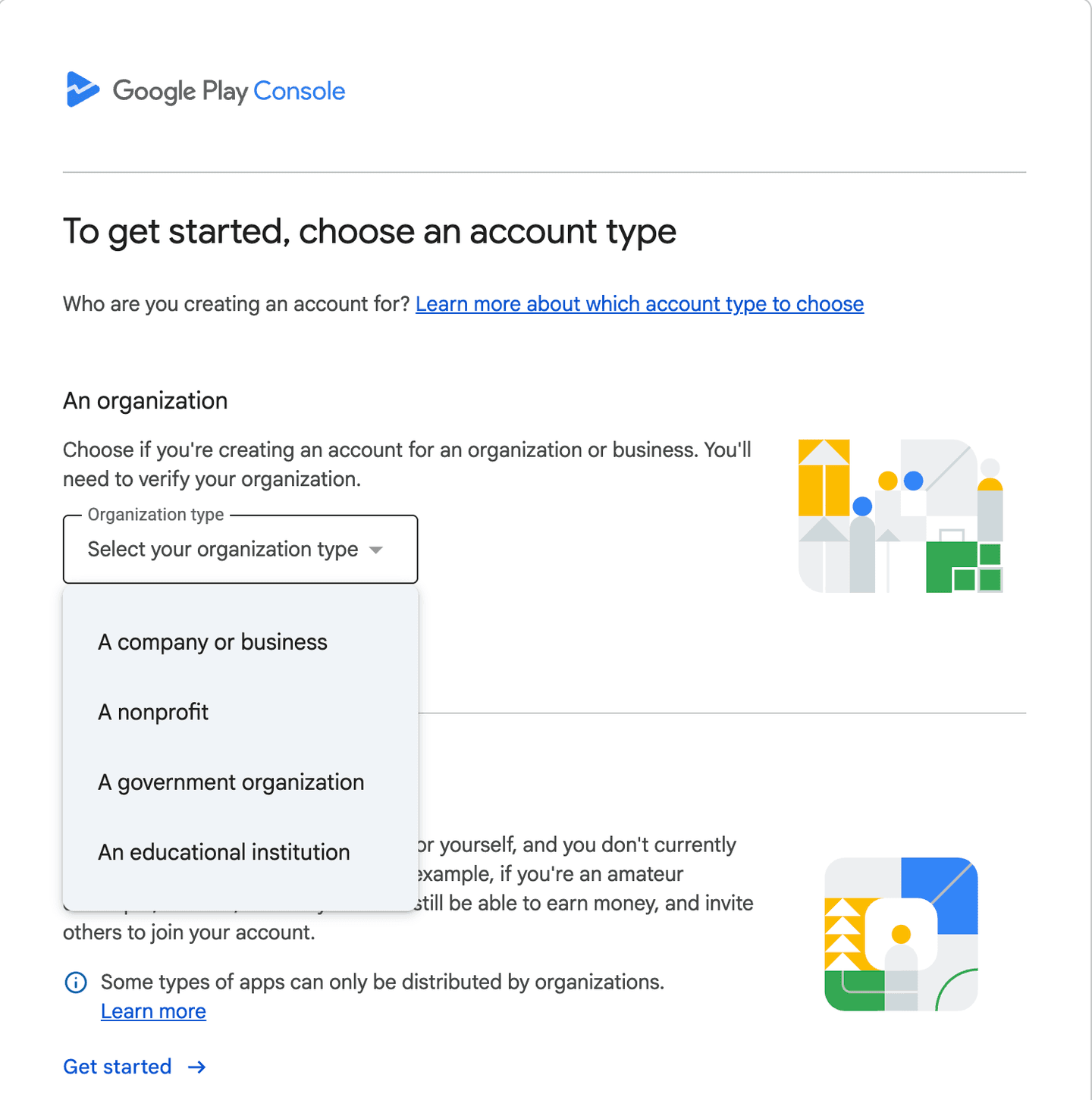
Organisation or personal? We recommend an organisation account. Google's guide to Play Console account types explains the difference.
Verification. Google verifies your identity. Organisations also need a D-U-N-S number and business verification. You do this directly with Google.
The registration fee. Google charges a one-off registration fee, which you pay directly to Google. You'll find it in Google's guide to getting started with Play Console.
Agreements and payments details. You accept Google's Developer Distribution Agreement yourself. If Google asks for a payments profile or tax details, those go directly to Google too.
Your public contact details. Google shows your developer name on Google Play, and your contact email (and phone number, if you give one) on your public developer profile. Use contact details you're happy for anyone to see. What Google asks for and shows publicly.
Personal accounts need a closed test first. If your account is personal and was created after 13 November 2023, Google asks you to run a closed test before your app can go public: at least 12 testers opted in, continuously, for at least 14 days.
You recruit the testers yourself, for example from your own clients. It adds about two weeks, which is why we recommend an organisation account. Read Google's testing requirements for new personal accounts.
What you'll need
- Your legal name, or your organisation's legal name and D-U-N-S number.
- A contact email you're happy to show publicly.
- A way to pay Google's one-off fee.
- For a personal account: at least 12 people willing to test your app.
Step 7: Give PeakReps access
Once your accounts are set up, invite PeakReps to both, so we can build, list and submit your app for you. We'll send you the email address to invite when you're ready.
Invite PeakReps to your Apple Developer team
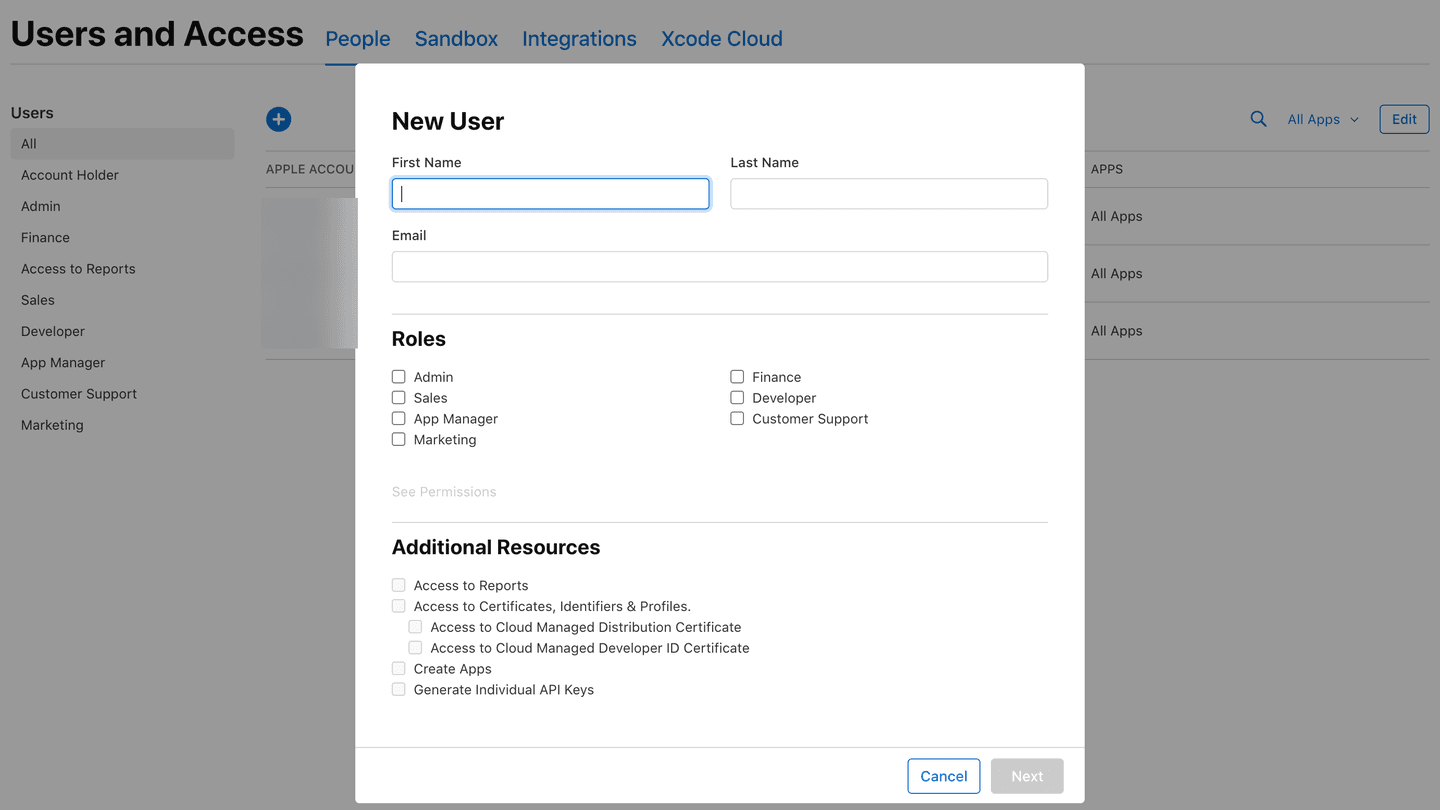
In App Store Connect, go to Users and Access and add PeakReps with the Admin role, then tick Access to Certificates, Identifiers & Profiles.
Why we ask for this: it lets us create your app's signing certificates and keys, set up your app in App Store Connect, upload builds and submit them for review.
Invite PeakReps to your Google Play Console
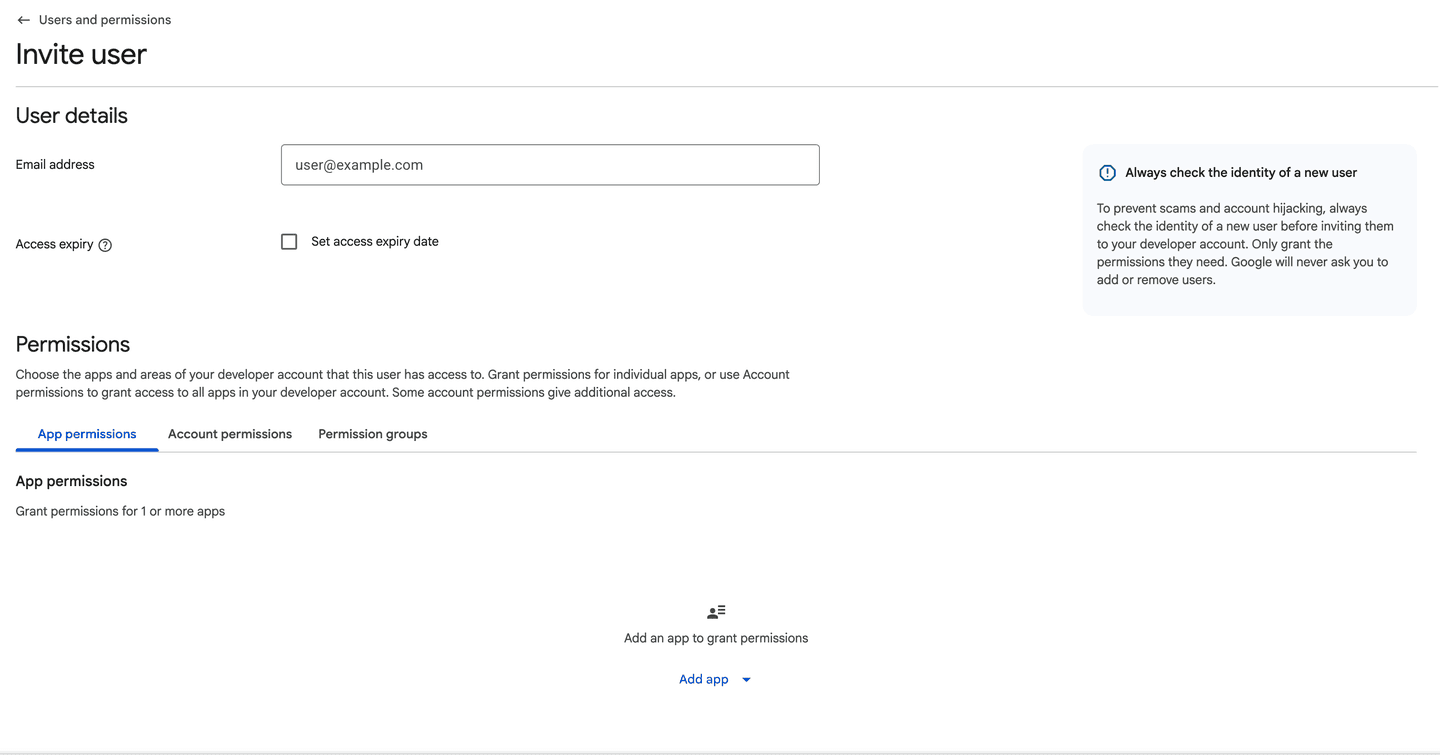
In Play Console, go to Users and permissions, choose Invite new users, and give PeakReps Admin (all permissions).
Why we ask for this: it lets us create your app, connect the account we upload builds with, manage your store listing, testers and policy declarations, and release your app to testing and production.
For more on what each role can do, see Apple's guide to team roles and Google's guide to Play Console permissions.
What this means for you
- We won't change your agreements or your tax or banking details, and we won't add or remove your other users.
- You stay the owner of your accounts and your app listing.
- You can remove our access at any time. If you do, we can't update your app.
- Inviting us authorises us to build, list, submit and update your app for you.
What we'll never ask you for
We'll never ask you to send us passwords, tax IDs, bank details, government ID or identity documents. Those go directly to Apple, Google or Stripe, on their own sites.
Step 8: Taking payments from clients (optional)
Coming soon
We're adding client payments through your own Stripe account, taken on the web, and PeakReps won't hold your money. You don't need it to release your app.
Step 9: Check your app's privacy details
Apple and Google both ask how an app handles personal data. We prefill everything about the PeakReps platform, so you only check the parts that are about your business.
We prefill:
- the permissions the app uses
- the third-party services it uses
- how workout logs and progress photos are handled
- push notifications
- account deletion
- Apple's privacy details and Google's Data safety form
You confirm:
- anything extra your business collects, or does with client data, outside PeakReps
- your special-content answers from step 4
Read how the PeakReps platform handles data in our Privacy Policy
Step 10: Ask us to release your app
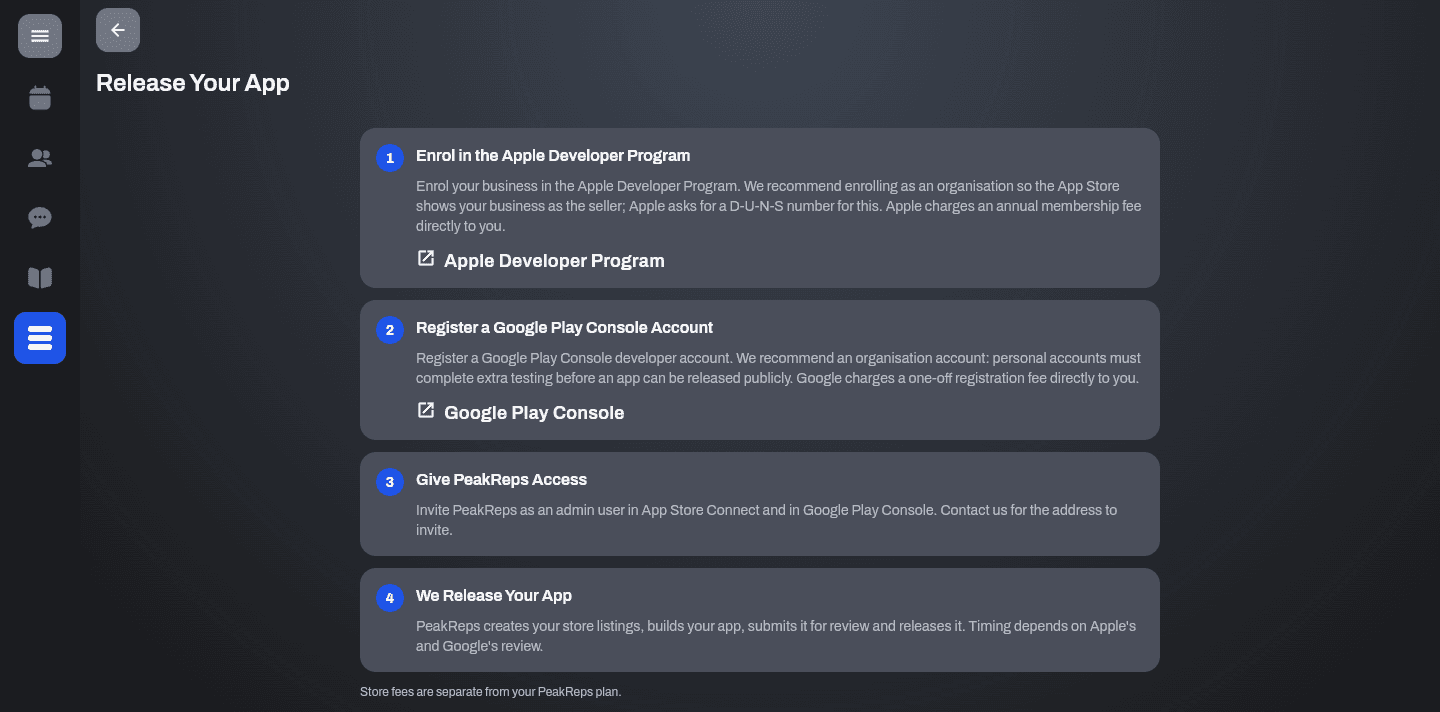
When you've worked through the steps, email us to ask for your release. Here's what happens next.
- We prepare your store listing (description, keywords, category and age-rating answers) and your screenshots.
- We'll show you your listing to check before we submit.
- We build your app, set up a demo login for the store reviewers, and submit it.
Review usually takes from a day to a couple of weeks, and Apple or Google may ask for changes. Once your app is approved, we release it. We'll tell you if anything is waiting on you.
What you don't need to do
You don't need to:
- build or code anything
- write your store description
- make store screenshots
- handle signing certificates
- deal with Apple's or Google's reviewers
Questions trainers ask
What do the store fees cost, and who pays them?
You pay Apple's annual membership fee and Google's one-off registration fee yourself, directly to Apple and Google. They aren't part of your PeakReps plan.
For the current amounts, see Apple's Developer Program page and Google's guide to getting started with Play Console.
Can you guarantee my app will be approved?
No. Apple and Google decide which apps they accept. Following this checklist gives your app its best chance, and if the reviewers ask for changes, we'll make them, or tell you what we need from you, and resubmit. If your app is rejected, we'll work with you to sort it out and appeal where it's reasonable, at no extra cost.
If it still can't be published, we take NZ$20 a month off your plan until it is, and you can keep coaching your clients through the PeakReps Athlete app and web app. Our Terms of Use explain how it works, including if you pay through the App Store or Google Play.
What happens to my app if I downgrade or leave PeakReps?
Your developer accounts and your store listing stay yours either way, and we stop building and maintaining the app.
If you move to a plan without a branded app, such as Free, your app keeps working for 30 days, so your clients can move to the PeakReps Athlete app and web app, which they can keep using. If you leave PeakReps, we give you 30 days' notice. After that, we can take the app off sale and switch it off, so it stops working, even on phones that already have it.
Once that's done, you can remove our access to your store accounts. Our Terms of Use explain how your plan ends.
Can I sell programs inside my app?
Not as in-app purchases. Client payments are coming soon: you'll take them on the web, through your own Stripe account. Apple and Google set the rules for what native apps can sell.
How long does it all take?
It depends mostly on Apple and Google, so we can't give you a fixed date. The slowest parts are usually the D-U-N-S number, the stores' identity and business checks, and, for a personal Google account, the 14-day closed test. Store review comes after that.
Start the free parts early, like your D-U-N-S number, and they can run while you work on the rest.
Ready? Contact us to release your app
Email us and we'll take it from there. Include your step 4 details: your legal business name, a short description of what you do, your support email, the countries you coach in and your audience, and anything from the special-content list.
Or write to support@peakreps.com with "Release my app" and your business name in the subject.
The same steps are in the trainer app too. Go to More → Plan → Release Your App (in the Your Own App section), or the Branded App card in More → Client App. You'll see them on a plan that includes the branded app. Open the PeakReps trainer web app